Time and Date Motion Graphics Animations

Motion Graphics animations

Explore All

Usage scenarios and concepts

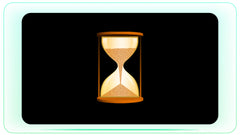
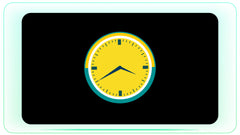
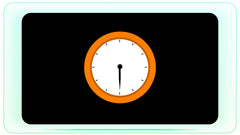
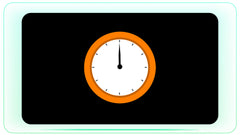
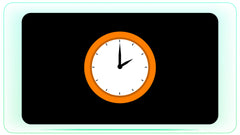
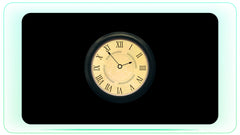
Enhance your editing process with our professionally designed motion graphics about time and hour. Our pack contains numerous ready-to-use elements such as 2D clocks, hourglasses and countdown timers.

Each file is presented in the ProRes 4444 format with the built-in alpha-channel and hence is completely transparent. All you need to do is drag and drop our files into your favorite editor like Adobe Premiere Pro, After Effects or any other video editing software and no special settings or additional plugins will be required.

Whatever kind of animation you need – ticking clock, stopwatch, countdown timer or animated hourglass, you can add professional touch to your projects easily.

Key Features

  • Ease of use: simply drag and drop files into your timeline.
  • Transparency: pre-keyed ProRes 4444 files with alpha-channels.
  • Professional design: clear and neat 2D design.
  • Variety: different kinds of clocks, stopwatches and timers.

Possible Uses of Such Elements

  • Countdown Timers: suitable for live streaming, introduction of events or YouTube challenges.
  • Stopwatch Animations: used for demonstration of speed or quickness, transition etc.
  • Clock Overlays: ideal to show the flow of time in documentaries or short films.
  • Hourglasses: perfect to build tension or show approaching deadline in your edits.

How to Use These Assets

These are premium Date and Time Motion Assets motion graphics created for professional video editing. Every asset includes transparent backgrounds or alpha channels, allowing you to simply drag and drop them onto your timeline without additional setup.

Compatible With

Adobe Premiere Pro • Adobe After Effects • DaVinci Resolve • Final Cut Pro • CapCut Desktop • Sony Vegas

Included Formats

Customizable After Effects (.AEP) Files

Fully editable After Effects project files that allow you to modify colors, line styles, animation timing, and keyframes for complete creative control.

Transparent Video (.MOV) Files

Professional ProRes 4444 files with built-in alpha channels. Simply place them above your footage to achieve instant transparency without masking.

Standard Video (.MP4) Files

Compressed MP4 versions with black backgrounds. Apply the Screen or Lighten blend mode in your editing software to remove the background instantly.

Transparent Image (.PNG) Sequences

High-quality transparent PNG frame sequences that can be used as static graphics, design elements, thumbnails, presentations, or custom animations.

Free Downloads

A curated collection of professional assets to elevate your video editing projects.

Cloud Storage Blue with Data Overlay Technology
Cloud Storage Upload Download and Sync Technology
Rising Bar Graph
Energy Bolt High Voltage Power Circular
Electric Outage with Bolt Animation
See all free assets →

Explore our library of after effects free templates, high-resolution free PNGs, and professional free videos with alpha channels. Whether you need motion graphics animations or drag-and-drop overlays, our free download assets help you achieve premium production value in your edits at no cost.

FAQ

Frequently Asked Questions

How do I use the .MOV video files?
Using the .MOV files is incredibly easy. These files come with a built-in transparent background. All you need to do is download the file and drag it straight from your computer into your video editor. Drop it onto a video track right above your main footage, and it will overlay perfectly with no extra steps.
What is a green screen background and why don't I need it here?
A green screen is a bright green background that you have to manually cut out using a "keying" tool inside your editing software. It often leaves ugly green edges around your graphics. You do not need to do that with our assets because our files have true digital transparency already built into them. There is no green background to remove.
Can I remove the solid black background from the .MP4 files?
Yes, you can. Because .MP4 files are smaller, they save with a solid black background instead of a see-through one. You can instantly delete this black background by applying a free, industry-standard video plugin like Unmult or Knoll Unmult. This plugin instantly deletes the black color and makes the graphic transparent.
How do I use blending modes like Screen or Overlay for .MP4 files?
If you don't want to use a plugin for .MP4 files, you can use your editor's built-in blend settings. Select the .MP4 clip on your timeline, look for the opacity or compositing panel, and change the Blend Mode to Screen or Lighten. This tells your software to hide the black color completely, leaving only the bright animated graphic visible over your video.
What are PNG images and how do I use them?
A .PNG is a high-quality static photo format that supports clear, transparent backgrounds. We include them as "sequences," which are folders containing every single individual frame of the animation as a transparent picture. You can import these folders as an image array into your editor, or grab a single frame to use as a graphic template for website designs or YouTube thumbnail layouts. To make it completely seamless, we provide a direct PNG download button so you can get the exact still frames you need instantly.
What is standard stock footage, and how are your assets different?
Standard stock footage usually refers to pre-made, flat video clips—like a drone shot of a city or a recording of someone typing on a laptop. Those videos are flat, solid blocks. Our assets are distinct motion graphics elements. Instead of being a finished background video, they are individual transparent layout components meant to overlay onto your current edits.
How do I use your animations as overlay stock footage?
You can use our animations exactly like custom b-roll elements or graphic footage layers. Because they do not have baked-in background colors, you can drop these design assets onto absolutely any suitable video background, color block, solid canvas, or live-action clip. They immediately stylize your timeline and blend completely seamlessly into your existing edit structure.